![logo-blue_small.png]](https://support.atwork.ai/hs-fs/hubfs/logo-blue_small.png?height=40&name=logo-blue_small.png)
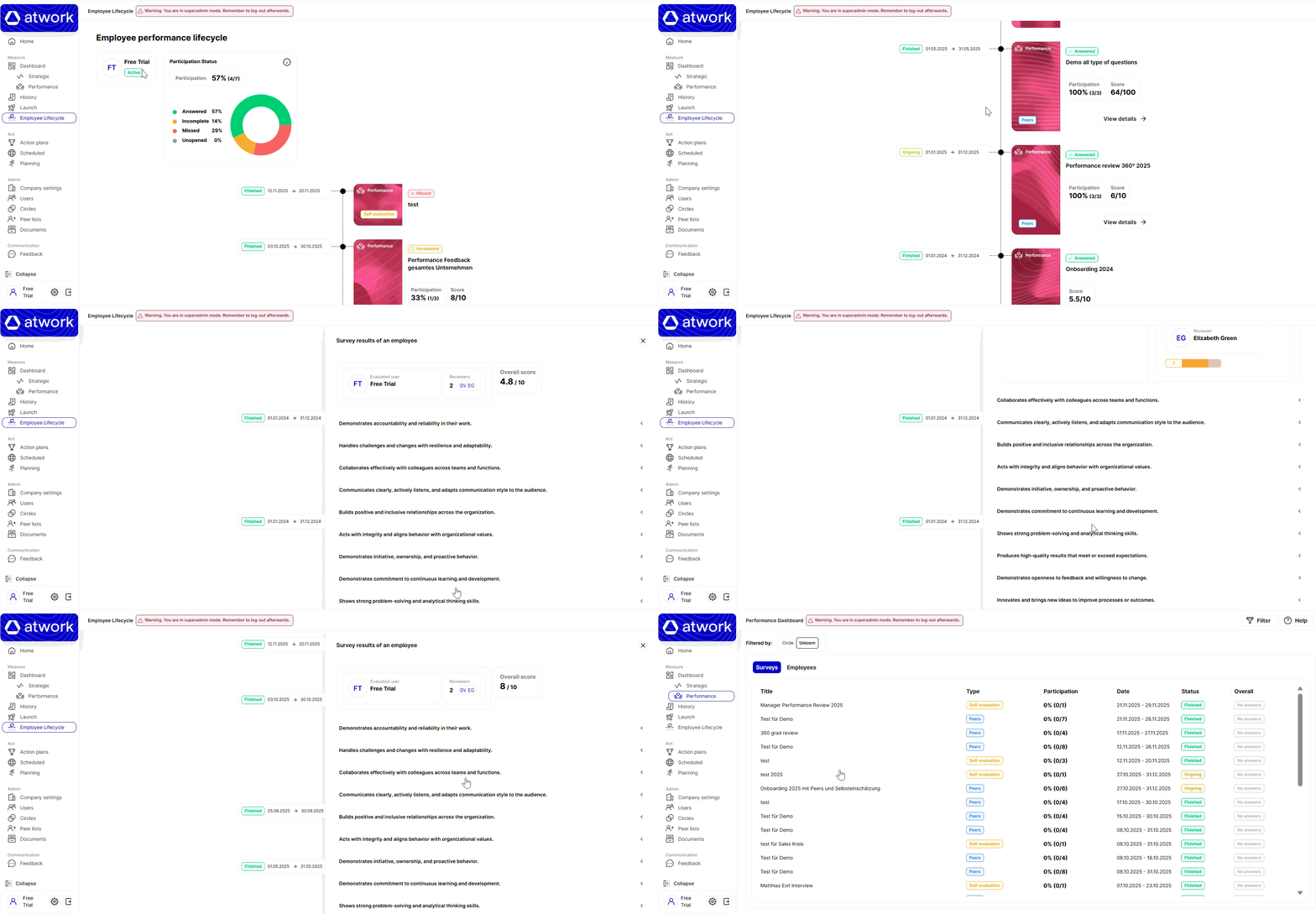
The Employee Lifecycle section provides a complete overview of all performance surveys an employee has participated in—either as a self-evaluator (self-evaluation surveys) or as the evaluated user in peer surveys. Only performance surveys appear in this section. Custom surveys and strategic surveys are excluded. Furthermore, if the employee participated only as a reviewer, those surveys will also not be shown.
Access & Permissions
Your own lifecycle
You can view your own lifecycle by navigating to Employee Lifecycle in the main menu.
This feature can be enabled or disabled by a superadmin via the EMPLOYEE_LIFECYCLE setting.
Another employee's lifecycle
To view someone else’s lifecycle, you need access to the Performance Dashboard.
Within the dashboard, open the Employees tab to see the list of employees you are allowed to access.
1. Summary
This section displays:
- The employee’s name
- The employee’s status (active or disabled)
- A participation status graph showing the distribution of all surveys the employee has been involved in—either as self-evaluator or evaluated user
Participation Calculation
- Participation = number of answered surveys / total surveys
Participation Status Definitions
| Status | Description |
|---|---|
| answered | Surveys fully completed and submitted |
| incomplete | Surveys started but not finished |
| missed | Finished surveys without any response (survey status = finished) |
| unopened | Open surveys that have not been started (survey status = ongoing) |
| reviewer-only |
Surveys where the employee is not a participant and only reviewers take part |
2. Survey List
This section shows all performance surveys the employee has been part of, sorted by start date from oldest to newest.
Note: Scheduled (future) surveys are not shown.
Each survey card includes:
- Survey status (finished or ongoing)
- Start and end date
- Launch type (peer or self-evaluation)
- Participation status (answered, incomplete, missed, unopened, reviewer-only)
- Survey title
- Participation rate (peer surveys only)
- Score (only if rating questions received responses)
“View Details” Button: When It Appears
The button is displayed based on survey type and participation conditions.
Self-evaluation surveys
-
Visible when the user has started or submitted the survey, regardless of survey status.
Peer surveys (evaluated user NOT included)
-
Visible when at least one reviewer has started or submitted the survey.
Peer surveys (evaluated user included)
If you are viewing your own lifecycle:
- Shown if the survey is ongoing and the evaluated user has submitted
- Shown if the survey is finished and there are responses
If you are viewing another employee’s lifecycle:
-
Shown whenever the survey has results (no need for the evaluated user to have answered)